

Mobile Setup & Support Guide
Complete guide for installing, activating, and using AssistYu VPN on Android & iPhone
What is AssistYu VPN?
AssistYu VPN for mobile secures your connection between your device, the WiFi hotspot you're connected to, and the worldwide web. It protects your online browsing from tracking, information snooping, IP logging and more — providing you complete anonymity and privacy on the go.
System Requirements
Purchase & License Key
After completing your purchase, you'll receive your unique license key via email
Install on Android or iPhone
Get the app from your official app store with these detailed steps

Open Google Play Store
On your Android device, locate and tap the Google Play Store icon on your home screen or in the app drawer.
Search for "AssistYu VPN"
Tap the search bar at the top and type "AssistYu VPN" or "ShieldApps VPN". Press enter or tap the search icon.
Tap Install Button
In the search results, find the AssistYu VPN app and tap the green "Install" button. The download will begin automatically.
Wait for Installation
The app will download and install within 30-60 seconds depending on your connection speed. You'll see a progress indicator.
Tap Open to Launch
Once installed, the "Install" button will change to "Open". Tap it to launch AssistYu VPN for the first time.
Grant VPN Permission
A system dialog will ask: "AssistYu VPN wants to set up a VPN connection". Tap "OK" or "Allow". This is required for the app to protect your traffic.

Open App Store
On your iPhone or iPad, locate and tap the blue App Store icon on your home screen.
Search for "AssistYu VPN"
Tap the search tab at the bottom, then type "AssistYu VPN" or "ShieldApps VPN" in the search bar.
Tap GET Button
Next to the app icon, tap the blue "GET" button. It will change to a green "INSTALL" button.
Authenticate Installation
Confirm with Face ID, Touch ID, or your Apple ID password. The app will begin downloading.
Tap Open to Launch
Once installed, the button changes to "OPEN". Tap it to launch AssistYu VPN for the first time.
Allow VPN Configuration
A system dialog will appear: "AssistYu VPN Would Like to Add VPN Configurations". Tap "Allow". You may need to enter your device passcode.
Register & Activate on Mobile
Two simple steps to unlock all premium features on your phone
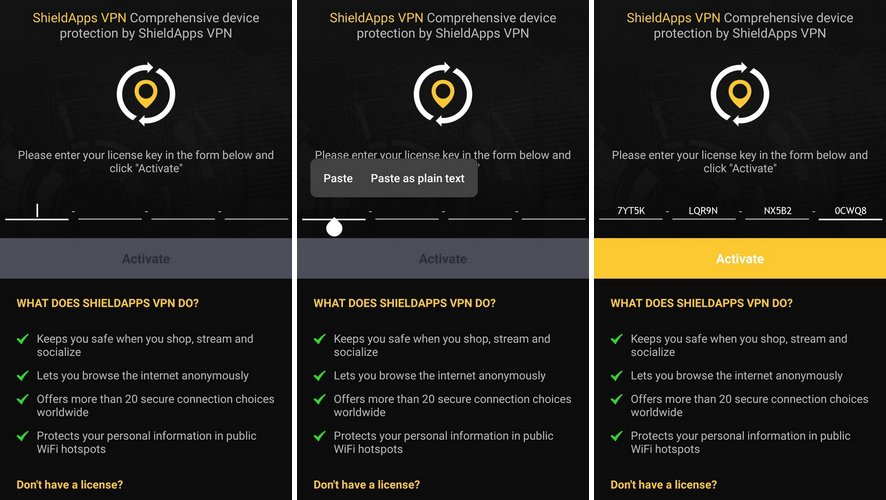
Open Activation Screen
Launch AssistYu VPN app, tap the menu icon (≡) or gear icon in the corner, then select "Activate" or "License".
Enter License Key
Copy your license key from the purchase confirmation email. Paste it into the License Key field. Then tap "Activate".
Activation Troubleshooting
- Invalid key: Copy exactly without extra spaces or hyphens
- iOS users: Your license key IS your password — just paste and activate
- Activation button greyed out: Check your internet connection and restart the app
- Still issues? Contact support via banner below
Connect to a Secure Server
Protect your mobile connection in seconds
How to Uninstall from Mobile
Complete removal guide for Android and iPhone
Android
- Press and hold the AssistYu VPN icon
- Tap "App info" or "Uninstall"
- Tap "Uninstall" again to confirm
- Tap "OK" to complete removal
iPhone / iPad
- Press and hold the AssistYu VPN icon
- Tap "Remove App" from the menu
- Tap "Delete App" to confirm
- Tap "Delete" to complete removal